Start Your Online Business with Ooulet
Create 🚀 blazing fast & Professional E-Commerce Store for your business using Ooulet.
Manage your business completely through your phone without spending lakhs on technology and developers. Our experienced Marketing and Development team will help you build your Business from Idea to 6-7 Figure Business. Download the App now.An Initiative of Make In India
This Guide will teach you how you can setup your own E-Commerce Store without relying on any developer, just using your phone.
📱STEP 1: Download App
🛍️ Step 2: Add Collections
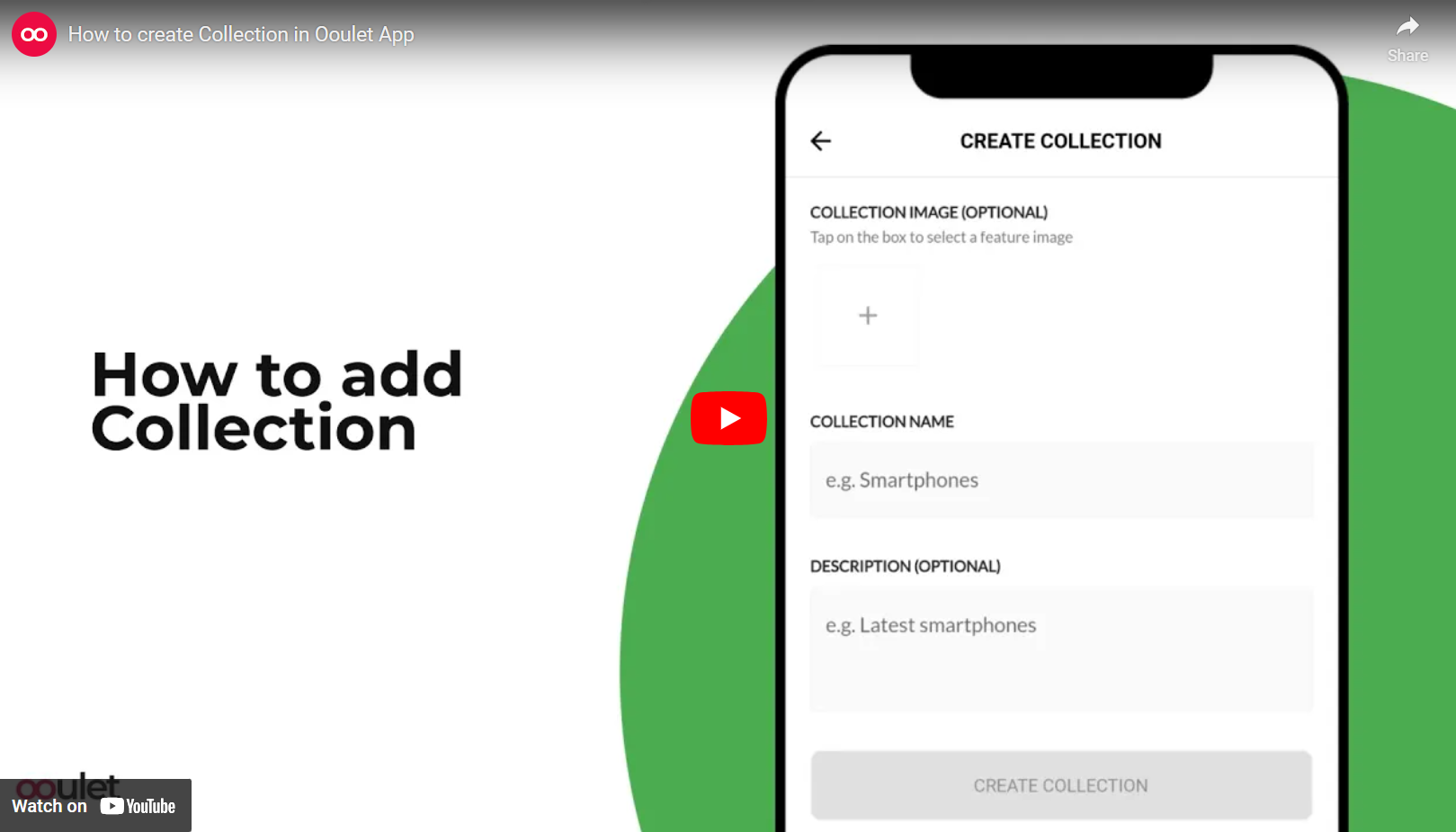
- To add any Collection Click on + Sign in Main Menu (Bottom of Ooulet App).
- Select Add Collection.
- Add Collection Image.
- Enter Collection Name.
- Write a Good Description of your Collection.
- Tap on Create Collection
- This Tutorial Video will help you to Add Collection:
🎁 Step 3: Add Products
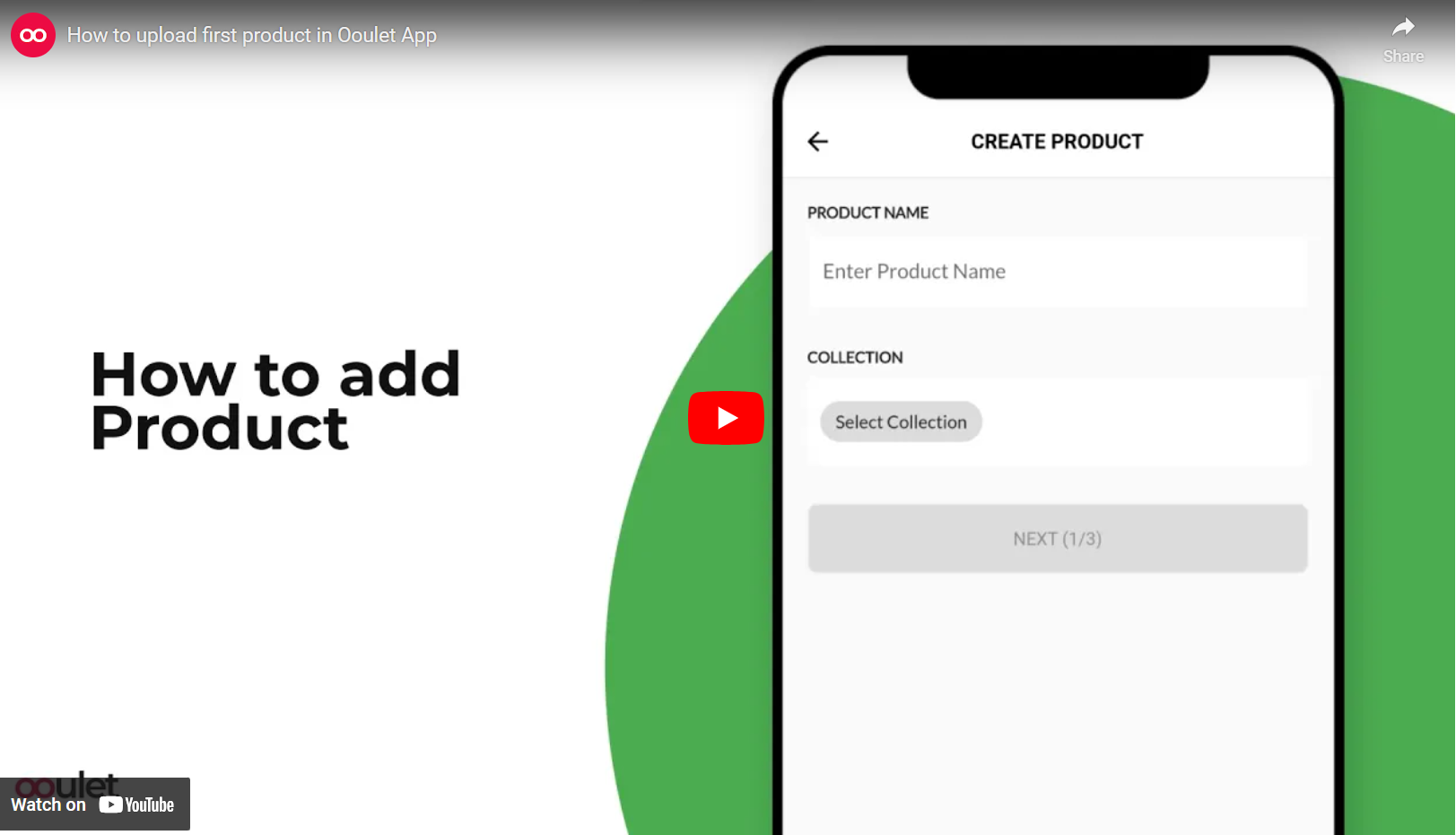
- To add any Product Click on + sign in Main Menu (Bottom of Ooulet App).
- Select Add Product.
- Enter Product name.
- Select Collection in which you want to Add the Product.
- Add Product images.
- If you want to Rearrange/Delete any Product Image tap on any Image and select from Bottom Menu.
- Write a Good Description of your Product.
- Enter your Product Price and Discounted Price if any.
- Tap on Update Product.
- This Tutorial Video will help you to Add your first Product:
🎎 Step 4: Add Product's Variants
- If your Product has Variants, you can choose from Color, Size, Weight and Custom.
- To add a Product with Variant you need to follow the same process of adding any Product.
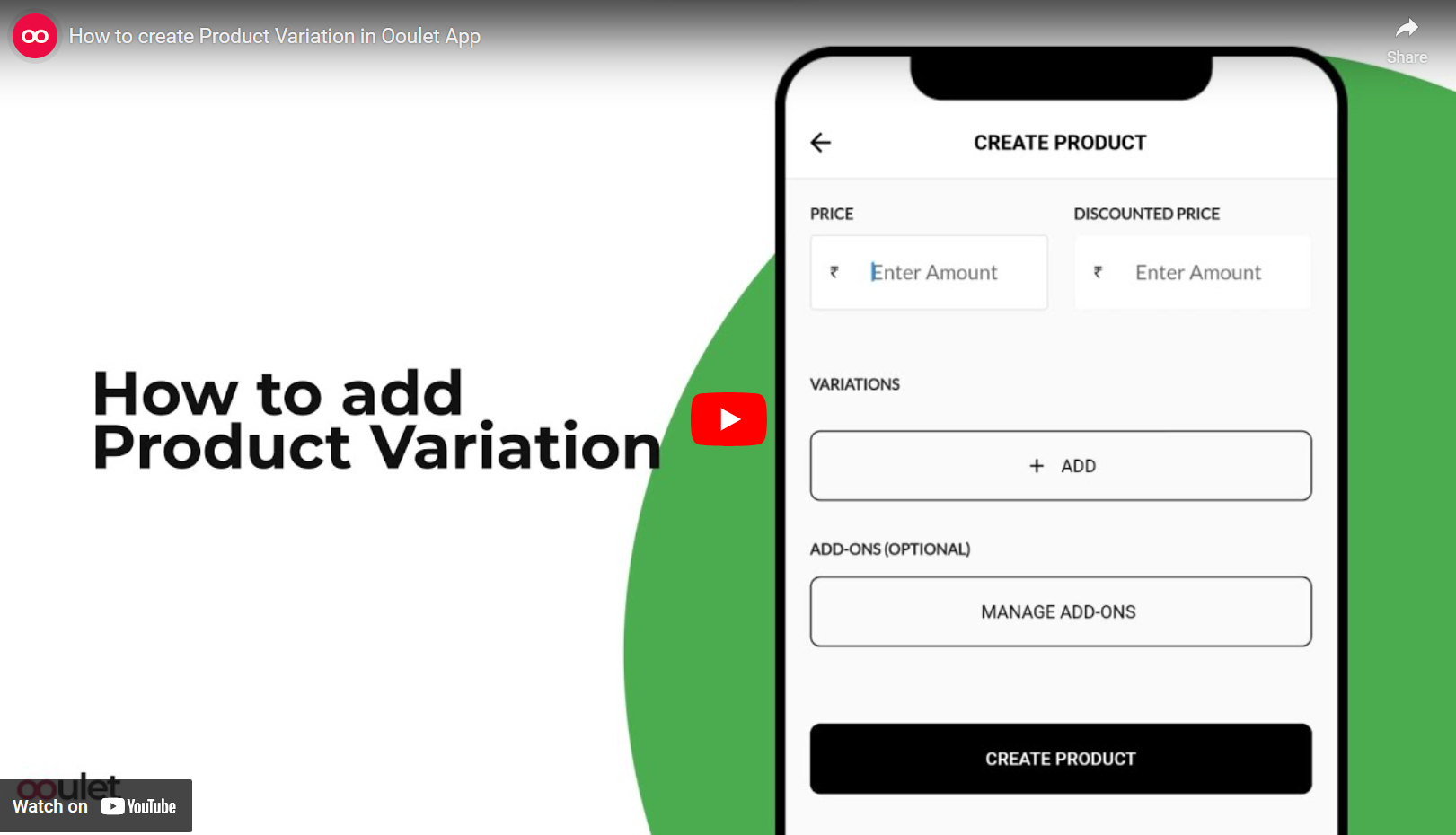
- Once you'll reach Product Price page Tap on Add Variant.
- Choose your Variant type (color, size, weight and custom) add your Product with Variant Price.
- Tap on Add Variant to add another Variant and then Tap on Save.
- If you wish, you can Rearrange your Variant by using Slide Bar on Right side of your Variant.
- Now click on Update Product.
- This Tutorial Video will help you to Add your first Product:
🚩Step 5: Banners
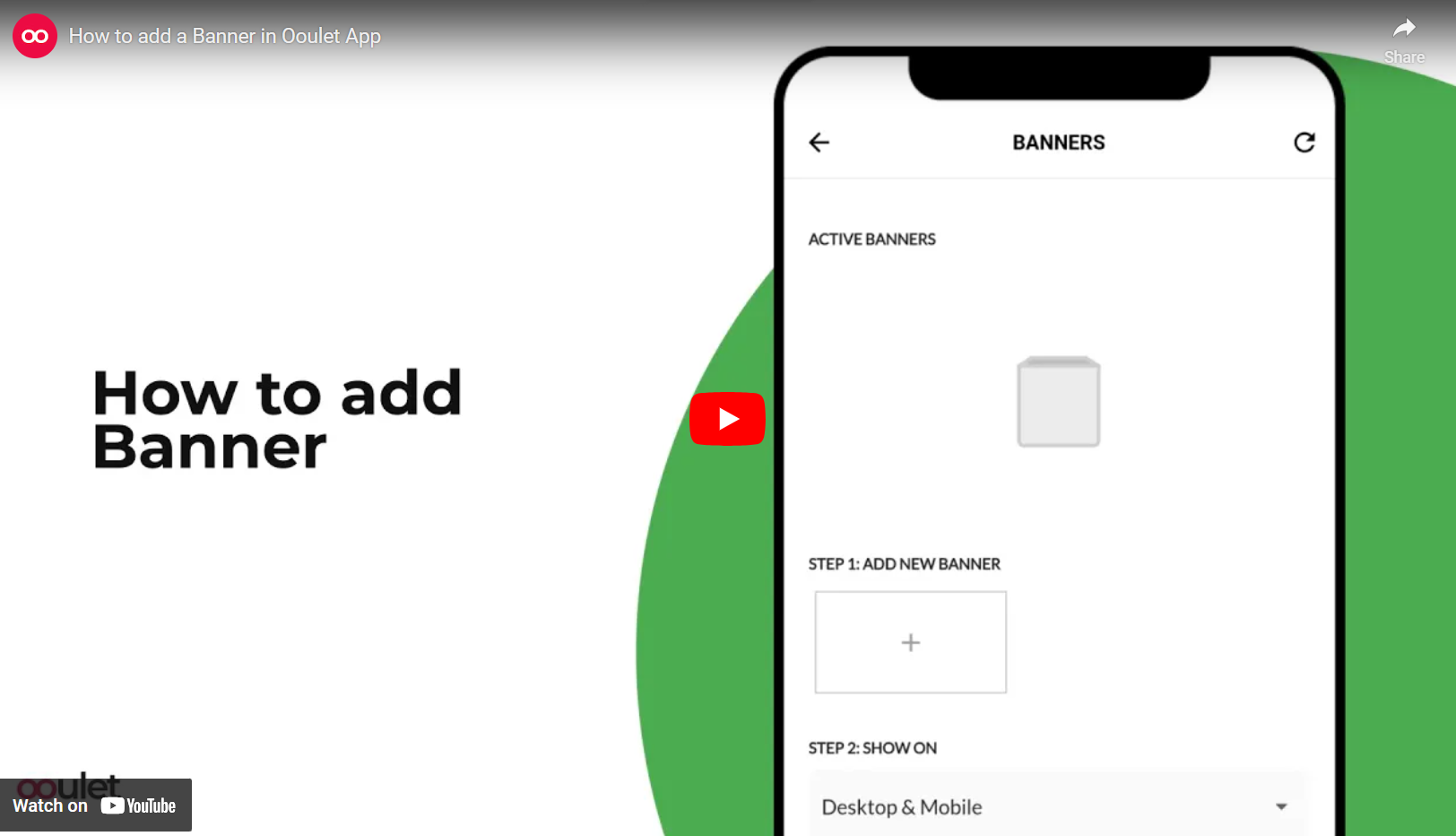
- To Add Promotional Banners click on Banners icon in Manage Business Section.
- Click on Add New Banner (plus sign)
- Select show on option (Desktop & Mobile, Desktop only, Mobile only).
- You can also Link Banner with any particular Page or URL.
- To Delete any Banner click on Delete icon on the banner.
- This Tutorial Video will help you to Add Banners:
📝 Step 6: Business Description
- You can set Business Description by using Manage Business section.
- Manage Business > Settings > Update Business Description.
- Describe your Business. Click on Save Button.
- This Tutorial Video will help you to add Business Description:
💞 Step 7: Business Logo
- You can set Business Logo by using Manage Business section.
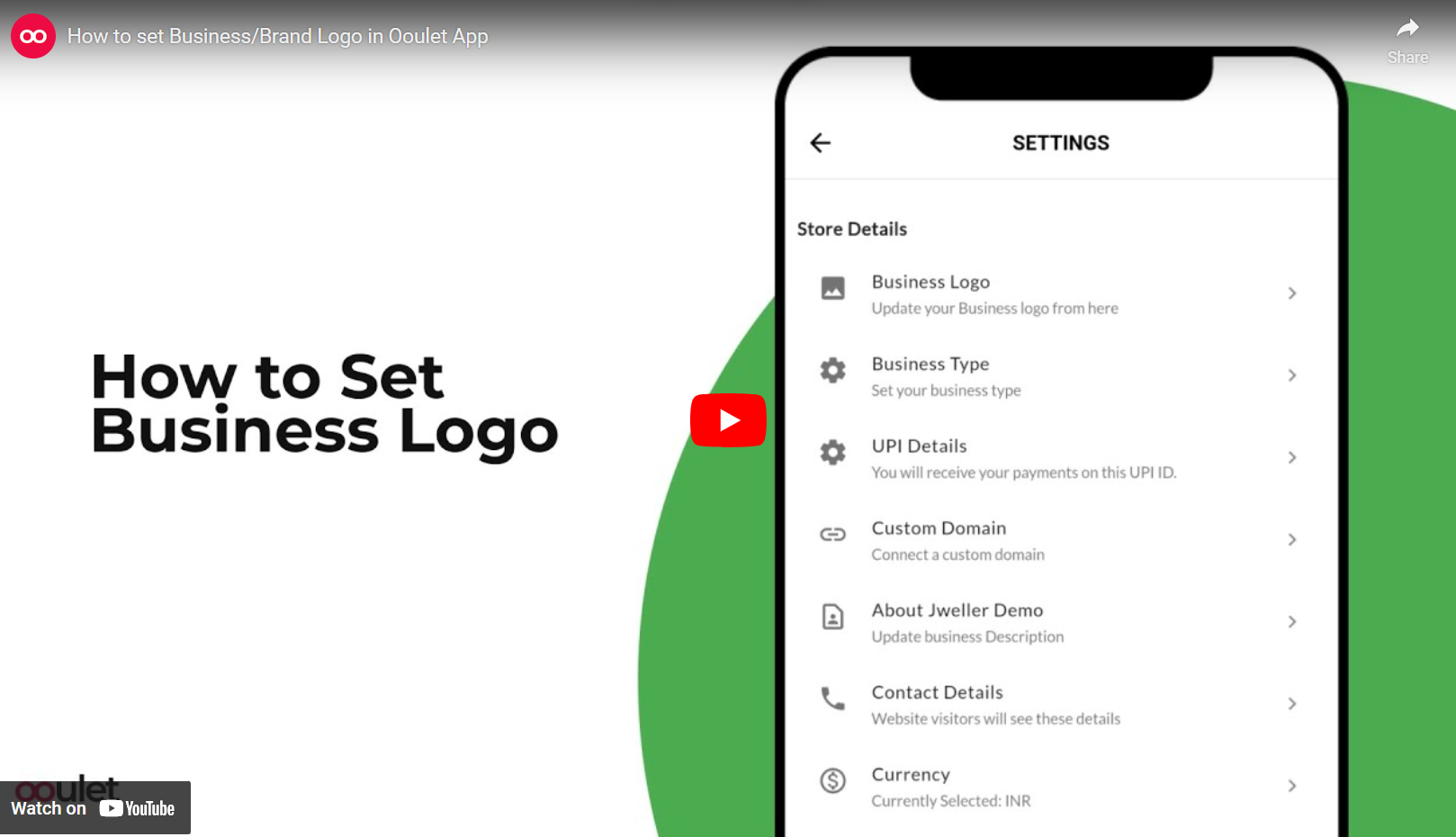
- Go to setting > Business Logo.
- Click on Add.
- Select Logo Image. Click on Save Button.
- This Tutorial Video will help you to Add Logo:
💸 Step 8: Cash on Delivery Charges
- You can Set COD Charges by using Manage Business Section.
- Manage Business > Settings > E-Commerce Settings > COD Charges.
- Enter COD Charges. Click on Save Button.
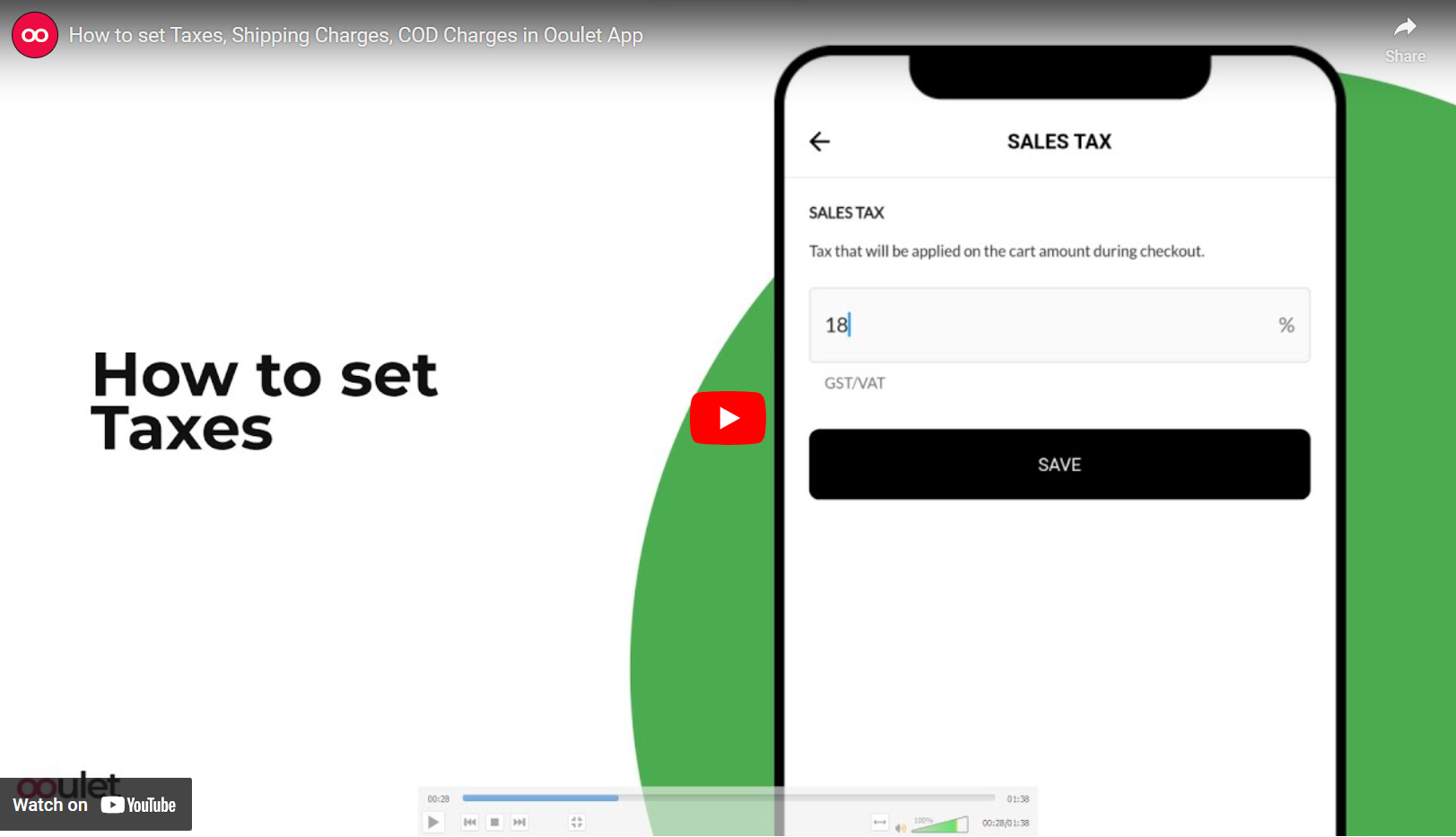
- Ooulet gives option to add COD charges for minimum order value.
- This Tutorial Video will help you to Add COD Charges:
🎟️ Step 9: Coupons
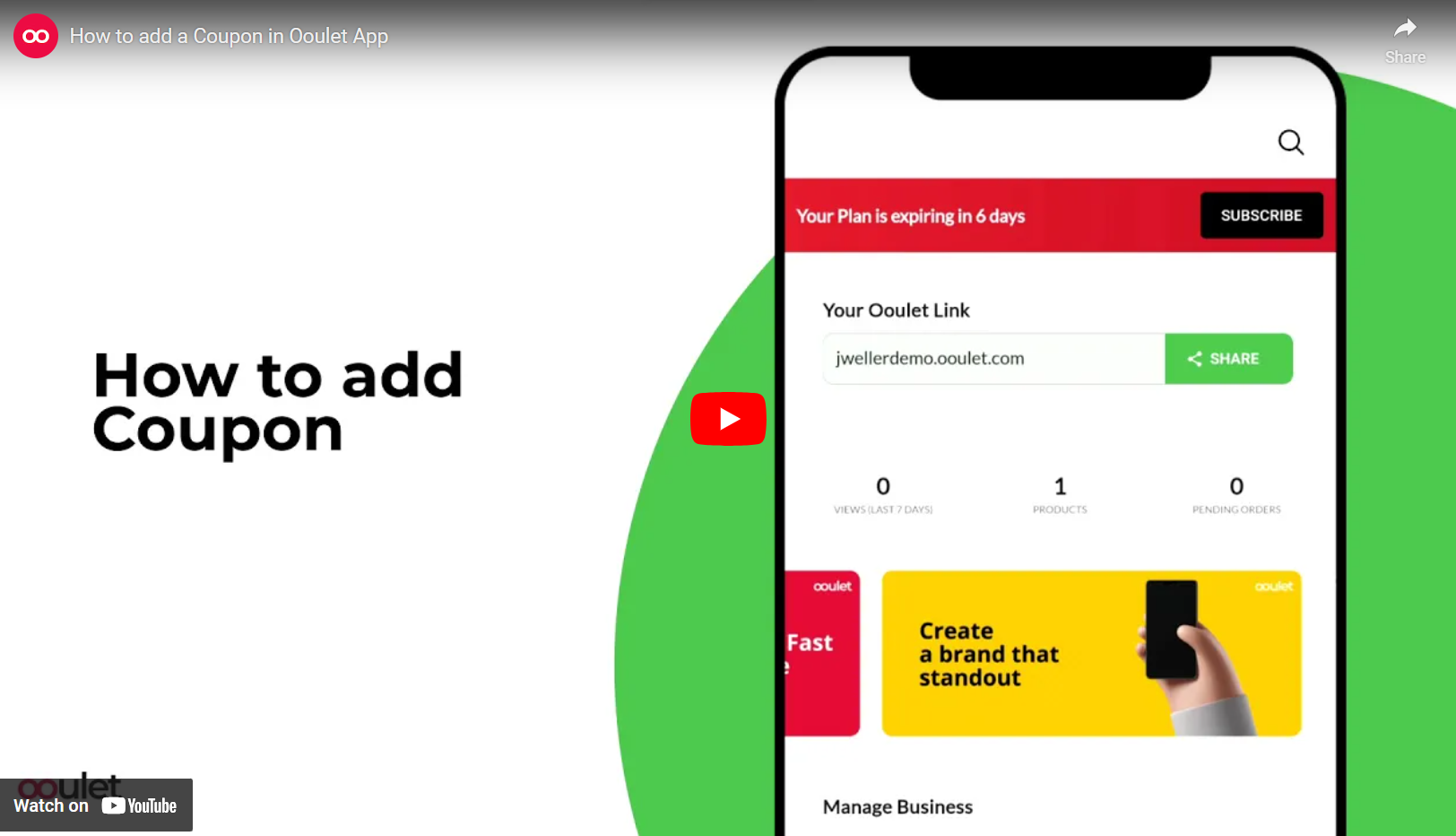
- To Add Coupons click on Coupon icon in Manage Business Section.
- Click on Create Coupon.
- Enter Coupon code > Enter amount > Click on Create coupon.
- Ooulet offers Advance options in coupons.
- You can set Coupon Type (Fixed price or Percentage).
- Set Coupons only for Online payments.
- Set Minimum cart amount.
- Set limit for Usage of Coupon.
- You can also set limit for Per User usages.
- This Tutorial Video will help you to Create Coupons:
💳 Step 10: Payment Methods
- You can set Payment Method by using Manage Business Section.
- Manage Business &get; Settings &get; E-Commerce Settings &get; Payment Method.
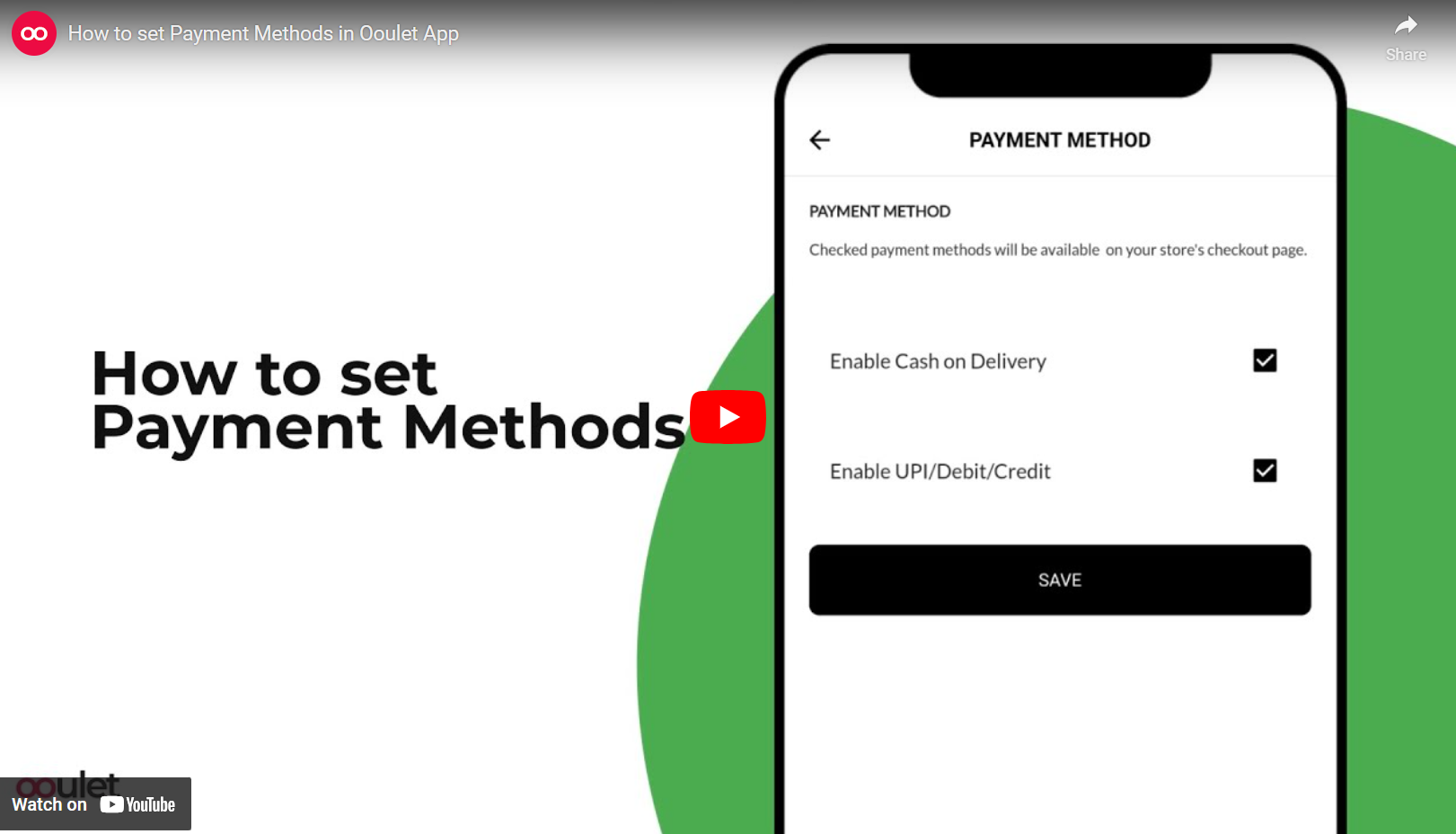
- You can Enable/Disable Payment Methods (COD, UPI, Debit/Credit card) by Clicking on check boxes and Click on Save Button.
- This Tutorial Video will help you to Add Payment Methods:
👤 Step 11: Profile
- You can Setup Profile by using Profile Icon in main Menu.
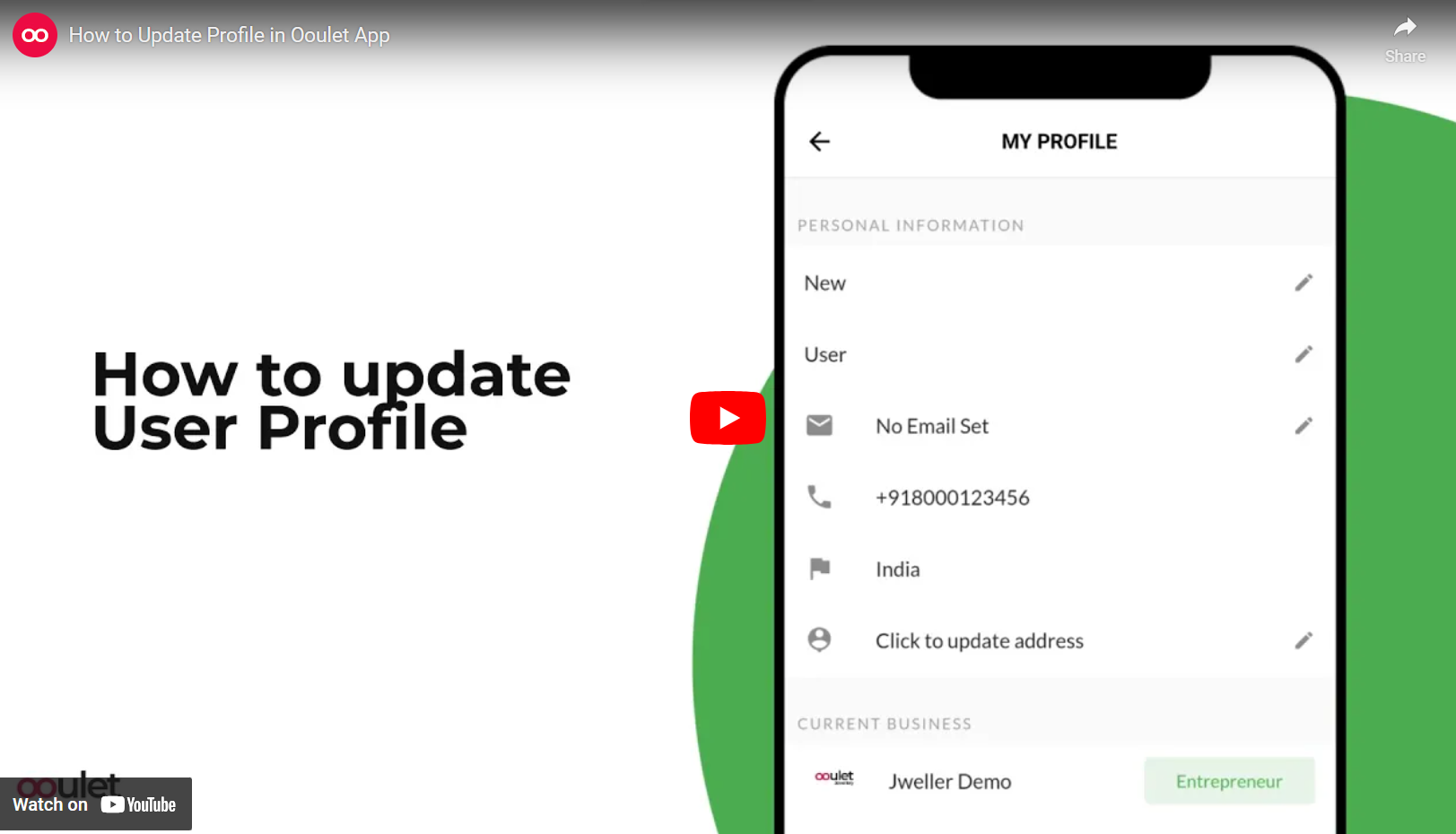
- Profile > Name > e-mail > Phone no. > Address.
- Note: This isn't Store's Profile.
- This Tutorial Video will help you to add Profile details:
🚛 Step 12: Shipping Charges
- You can Set Shipping Charges by using Manage Business Section.
- Manage Business > Settings > E-Commerce Settings > Shipping Charges.
- Enter Shipping charges. Click on Save Button.
- Ooulet gives option to add Shipping charges for minimum order value.
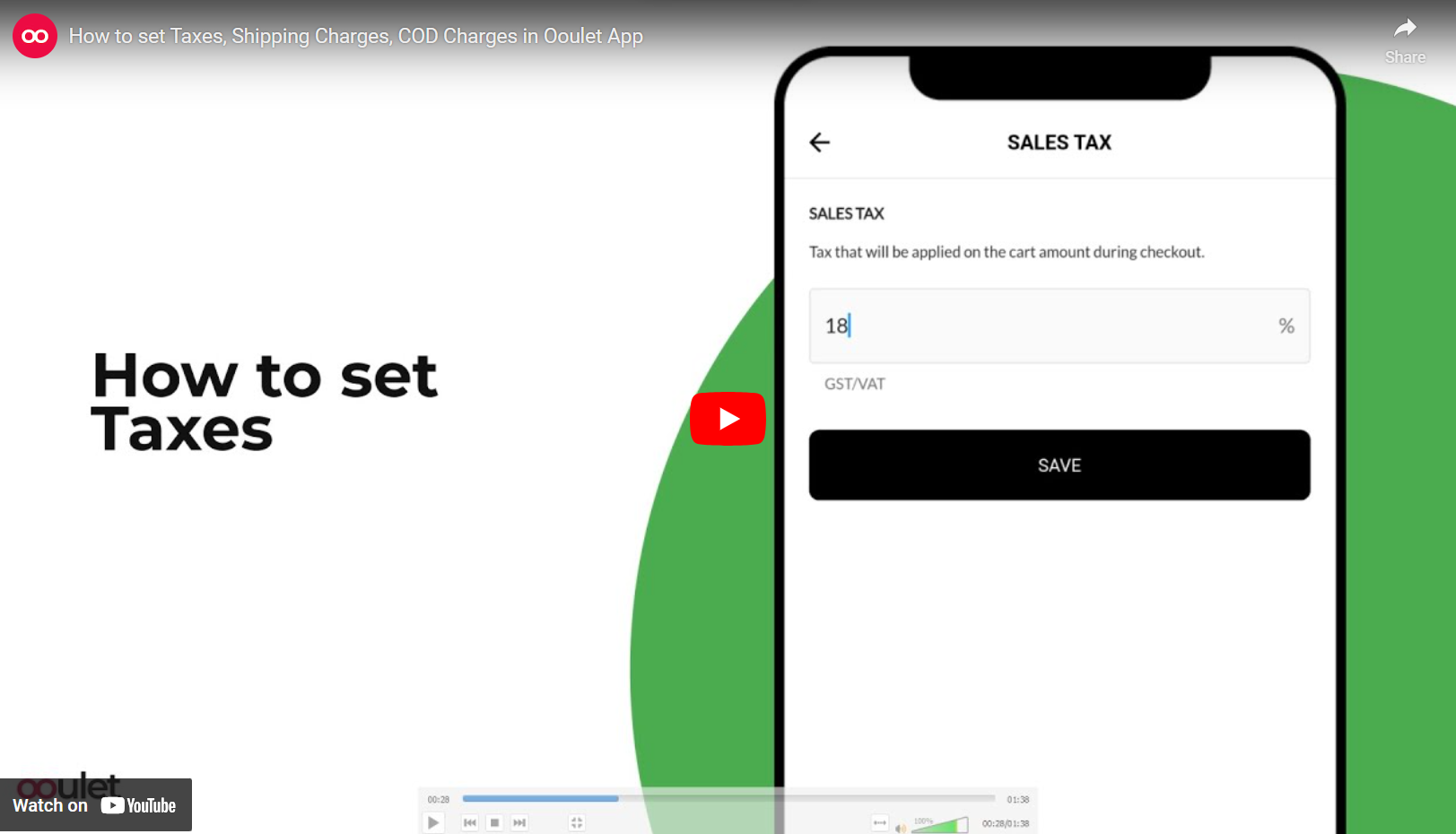
- This Tutorial Video will help you to Add Shipping Charges:
👥 Step 13: Social Links
- You can Add Social Links (Instagram, Facebook, Twitter, WhatsApp and YouTube) to store.
- You can Add Social Links by using Manage Business Section.
- Manage Business > Settings > Social Links.
- Paste URL of Social Media Account. Click on Save.
- This Tutorial Video will help you to Add Social Links:
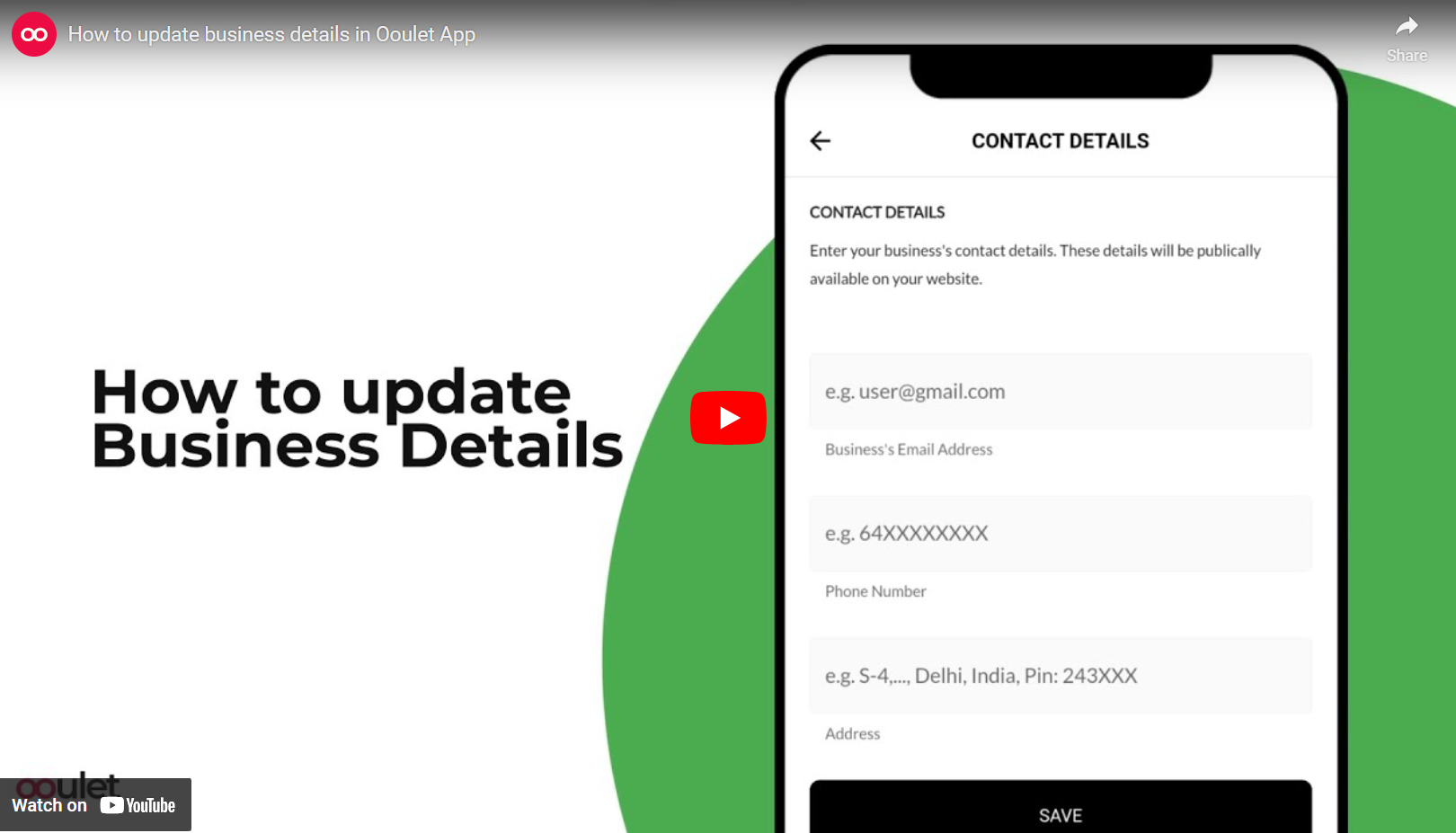
👨👩👧👦 Step 14: Store Contact Details
- You can Add Store Contact details by using Manage Business Section.
- Manage Business > Settings > Contact Details.
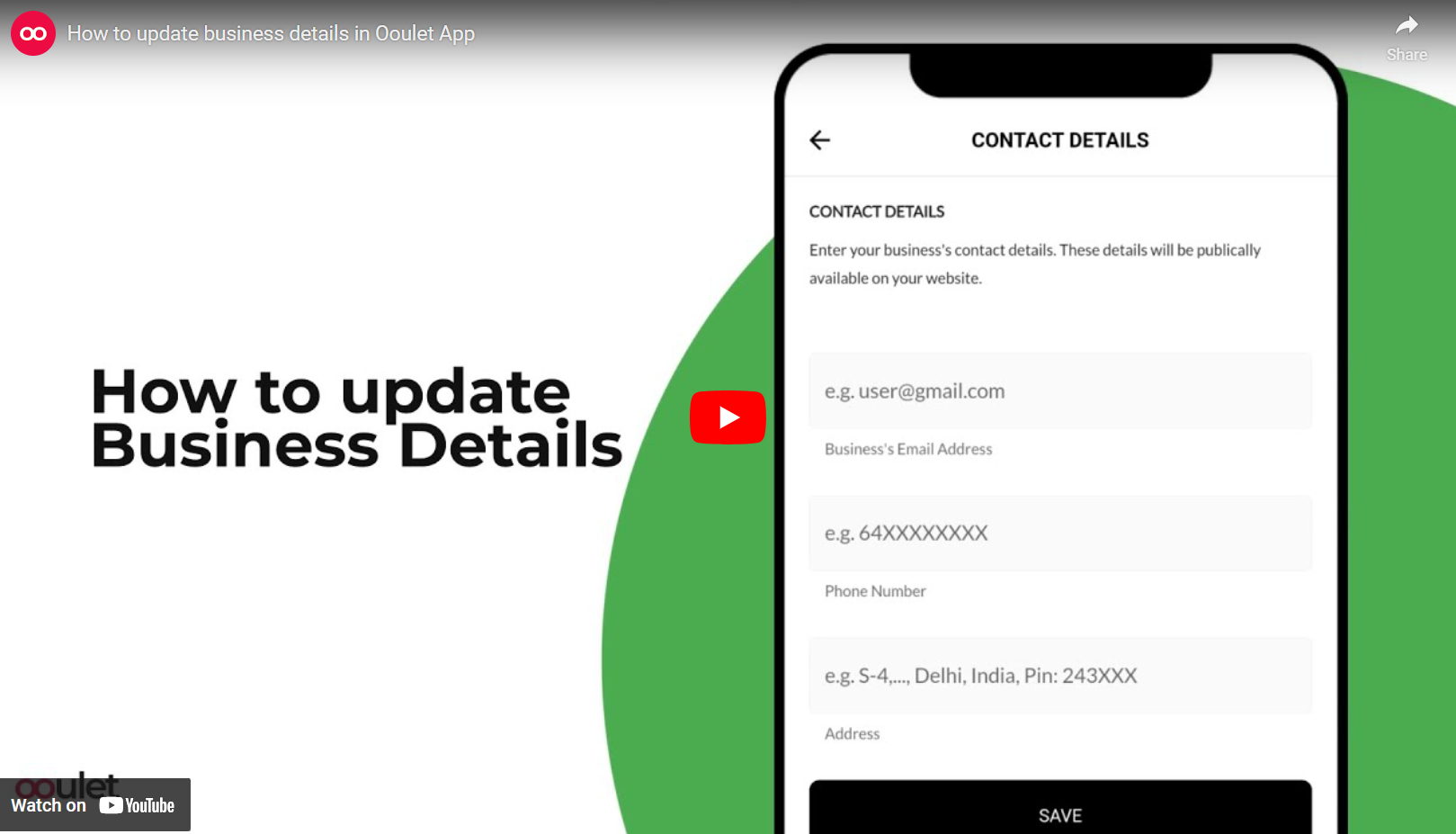
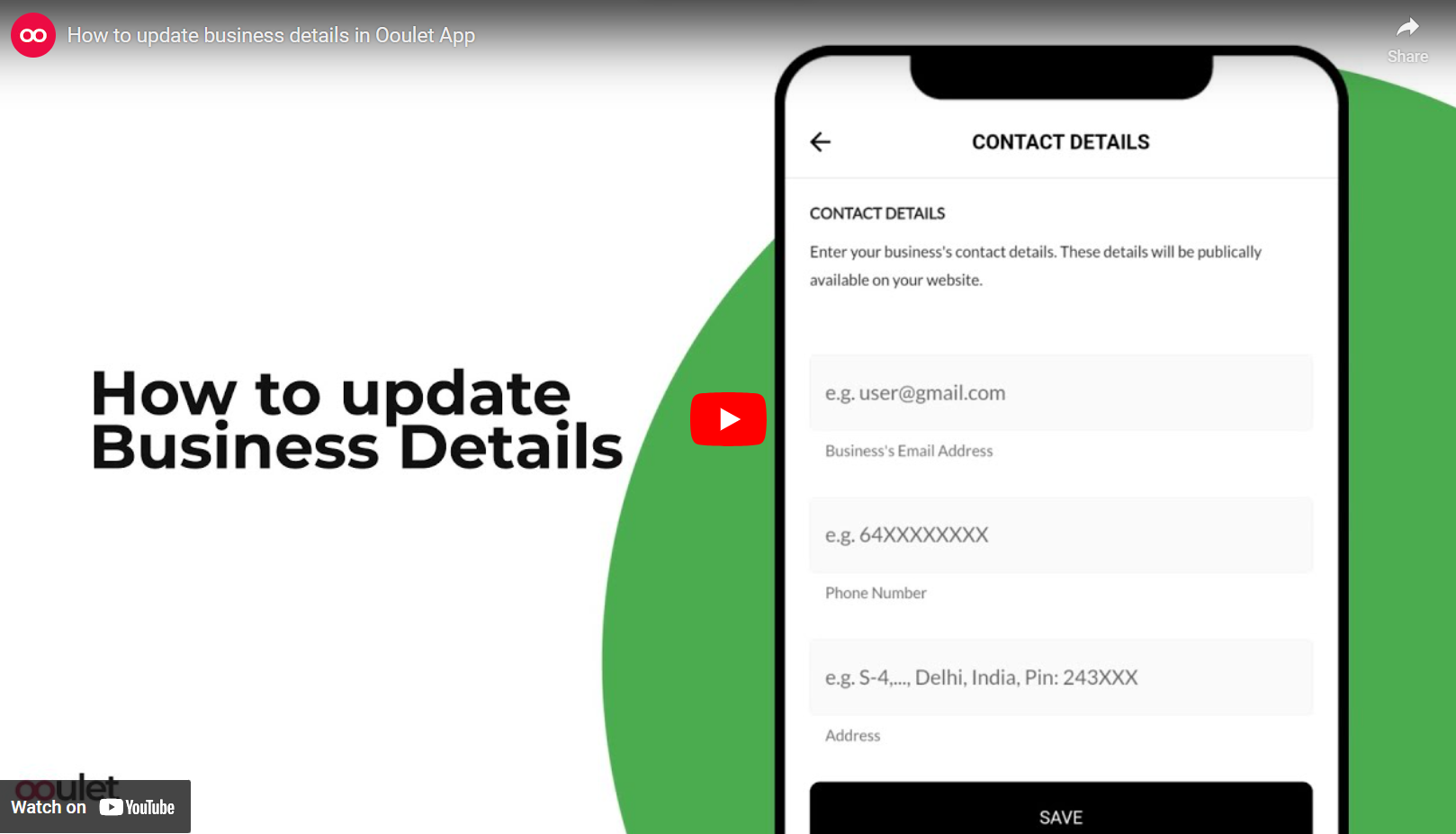
- Enter Business e-mail, Enter Phone Number, Enter Store Address. Click on Save Button.
🎉 Congratulations, your E-Commerce store is Ready!🎉 There is so much more we can do for your business. Reach out to us to know how your business can 🚀scale from 0 to 1,00,000 customers.
🏢 Your business could be the next big thing! Growth is one click away 🚀
Checkout Our Featured Stores

We understand that every business is unique and we're Vocal for Local
Schedule a call with our team to know how Ooulet can help you grow digitally and scale to millions of users without any hassle.
Copyright ©2023-Ooulet. All Rights Reserved.